
DIALux evo 14 and Revit: A seamless workflow for lighting design
Lighting design projects are becoming increasingly complex, processes more digital, and collaboration between different disciplines more important than ever. This is exactly where we come in. Our goal is to further develop DIALux into a tool that covers the entire lighting design process and supports you in working as efficiently as possible.
A key building block in achieving this is close collaboration with other programs that support the BIM method. With the upcoming version, DIALux evo 14, we have added an important component to the workflow: Autodesk Revit.
What have we already achieved?
The BIM method thrives on the structured exchange of information throughout the entire planning process. All participants work with a shared data set, known as a Common Data Environment. DIALux already supports this principle today: building models and planning information can be exchanged openly and across software platforms, without being tied to a proprietary system. We already cover this area well with interfaces to DDSCad, Vectorworks, and Metaroom. However, there are also formats that are tied to a specific system, such as Revit.
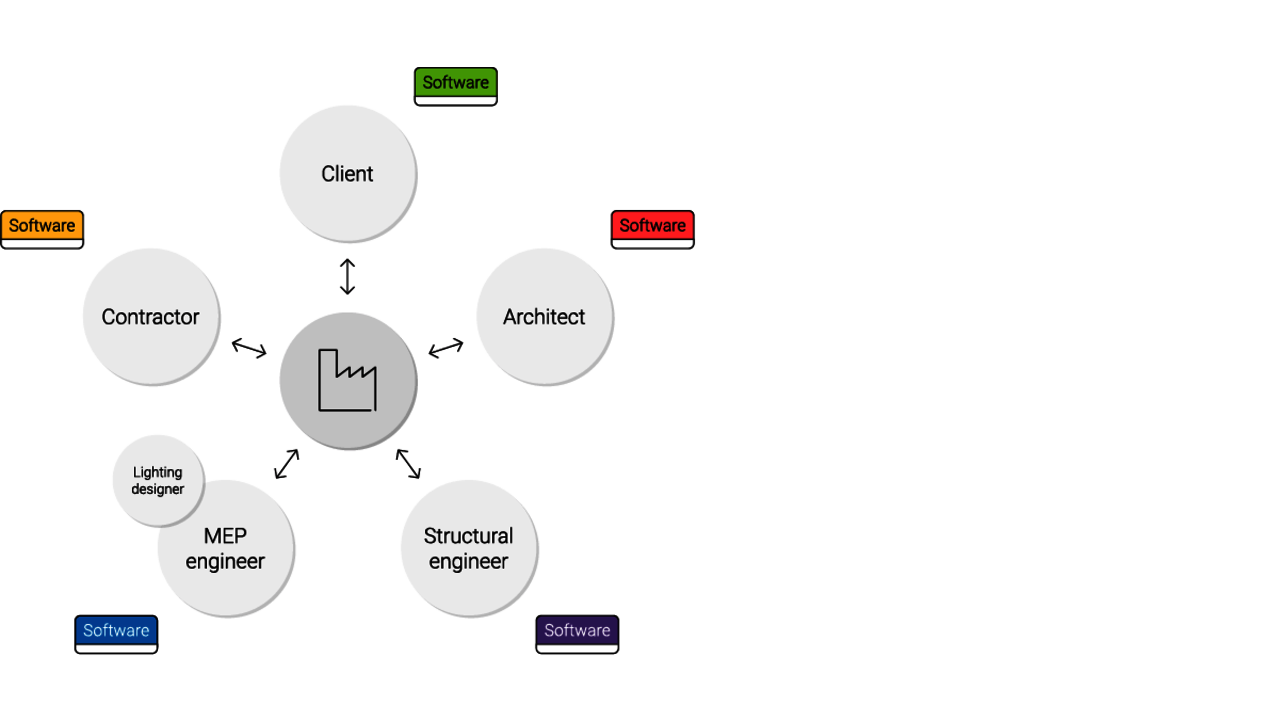
Revit and DIALux: How the process works
With DIALux evo 14, we can now seamlessly support this interface as well. Soon, you will be able to easily exchange your model data between the programs via a plug-in.
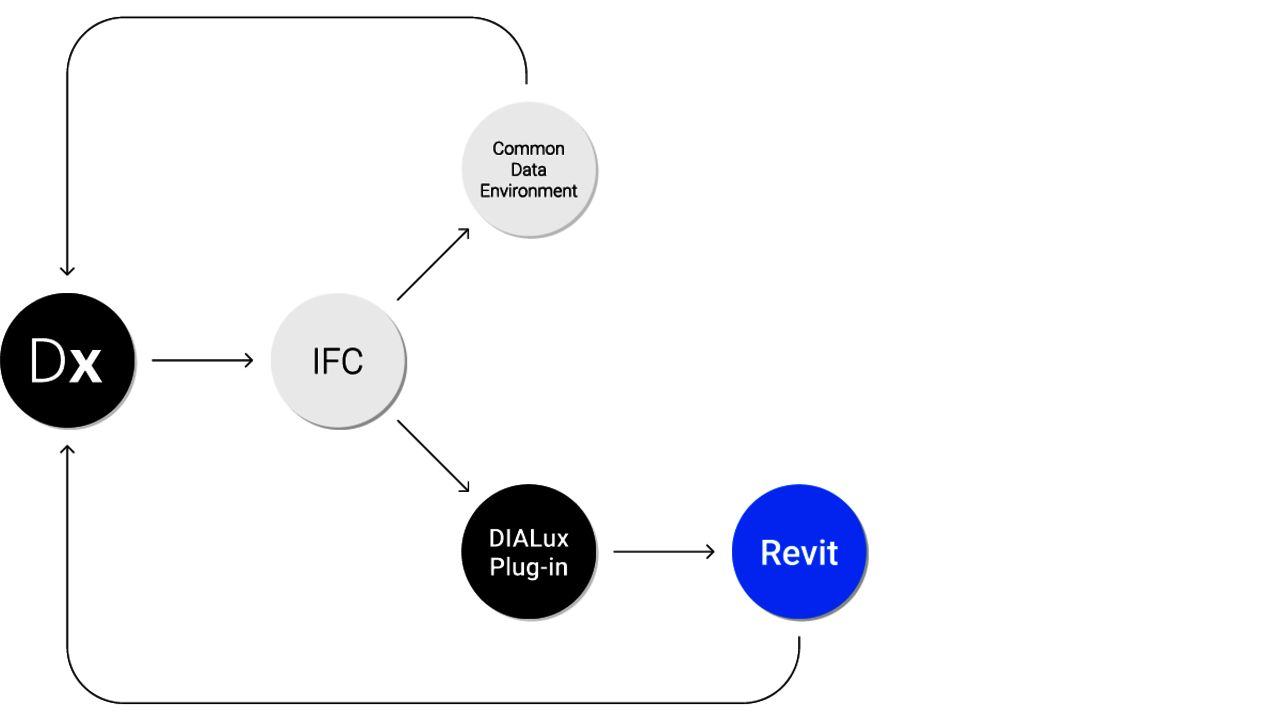
And this is how it works:
You create your building model in Autodesk Revit as usual. Once it is complete, you can export an IFC file via the file menu.
If your project consists of multiple partial models, you can merge them during export and then import them into DIALux.
With a single click on Export, the proprietary Revit model is converted into an IFC file. As a DIALux Pro user, you can then import this file directly into DIALux and start your lighting design. Luminaires can be placed directly in the model. DIALux automatically recognizes the Spaces created in Revit, assigns the luminaires correctly, and documents both their position and mounting location.
And of course, the workflow doesn’t end here.
If you want to transfer your lighting design back to Revit, simply export the project again from DIALux as an IFC file.
Next, load the soon-to-be-released DIALux evo Revit Add-In.
The plug-in automatically reads the information from the IFC model and places the luminaires used as Revit families in the exact correct positions. You immediately see the complete model structure, including levels, spaces, and the associated luminaires.
When you click on a luminaire, all relevant product information is available in Revit, standardized according to ANSI / IES TM-32-24.
Preliminary designs from Revit are no problem either
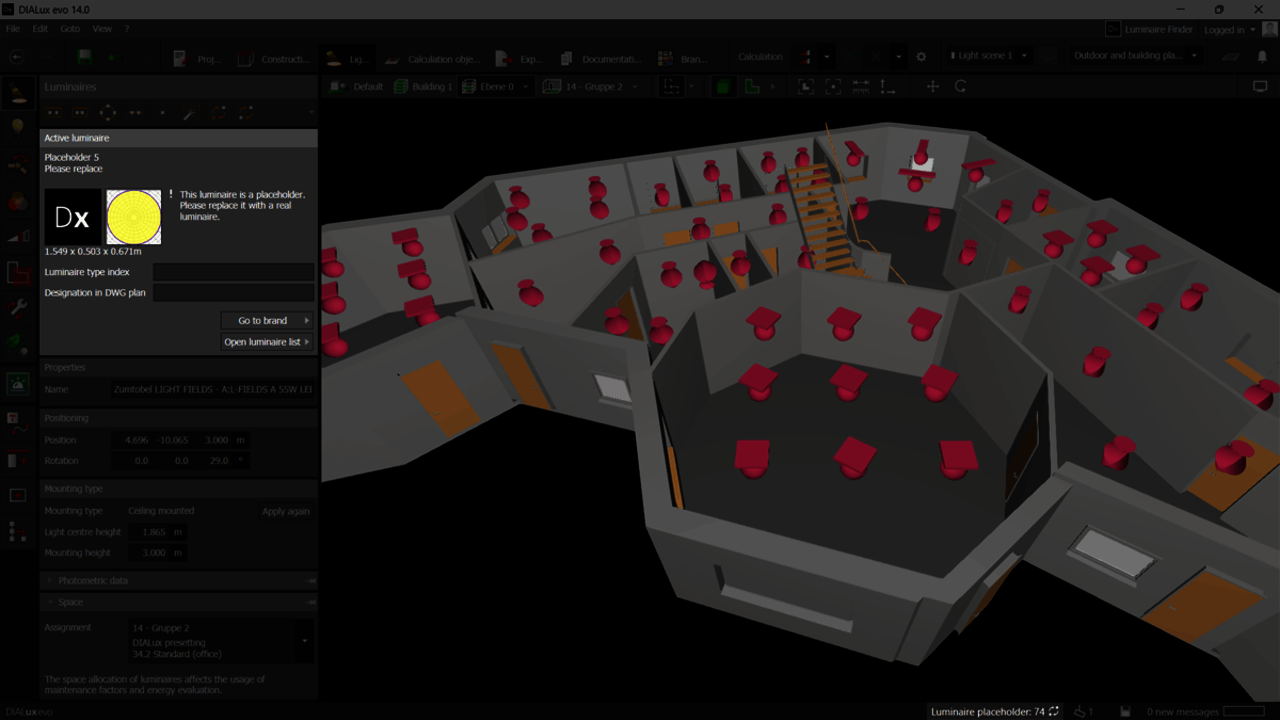
If the lighting design was initially created directly in Revit, this workflow also works seamlessly. Luminaires that have already been placed are imported into DIALux as placeholder luminaires. While these do not contain photometric data, they are clearly identifiable and aligned with the Revit objects. With just a few clicks, you can replace them with real luminaires and continue your planning.
Outlook
With DIALux evo 14 and the new Revit Add-In, we are taking a major step toward end-to-end, efficient BIM-based lighting design. The release is just around the corner – we’ll keep you up to date!
Discover DIALux Pro now and benefit from BIM features.